Editing with the keyboard
Move the caret, extend a selection, type bases and delete them — without reaching for the mouse.
Sequence editing is a keyboard job. You are counting bases, stepping codon by codon, trimming three nucleotides off an overhang — all of it faster by key than by aiming a pointer at a 9-pixel column. This page covers the keys that act on the bases themselves. Everything below is reproducible on any starter project; the numbers in the figures come from pBR322, a real 4,361 bp cloning vector with 50 annotated features.
First: give the sequence the focus
Click once anywhere in the sequence. The caret appears, and the status bar starts reporting where it is:
SYNPBR322 · 4,361 bp · circular · 50 features · 53.7% GC · pos 192This is the one thing worth knowing up front. The editing keys act on the canvas that has
focus, deliberately — otherwise typing a in a dialog, a search box or the command palette would
insert an adenine into your plasmid behind your back. So if arrow keys stop moving the caret, you
have almost certainly focused something else; click the sequence again and they come back.
A dialog that closes returns focus to the page rather than to the canvas, so this is the normal way to lose it.
Moving the caret
Work in the Sequence view (the bases, row by row) from the switcher at the bottom of the canvas.
| Key | Where the caret goes |
|---|---|
| ← → | One base left or right |
| ↑ ↓ | One row up or down — the same column, one line of bases away |
| Alt + ← / → | Start / end of the current row |
| Alt + ↑ / ↓ | Start / end of the whole sequence |
The status bar's pos updates on every press, so you can step to an exact base and watch the number
rather than counting glyphs. On pBR322, Alt + ↓ takes the caret to pos 4,361
— the last base, not a scroll position.
On a circular molecule the caret does not fall off the end. Step left past the origin on pBR322 and it continues at the far end of the plasmid rather than stopping, because on a circular molecule the last base really does precede the first. On a linear construct it stops at the ends.
Selecting with the keyboard
Hold Shift and use any of the movement keys above. The selection grows from wherever the caret was:
| Key | What it selects |
|---|---|
| Shift + ← / → | Extend one base at a time |
| Shift + ↑ / ↓ | Extend a whole row |
| Shift + Alt + arrow | Extend to the row or sequence boundary in one press |
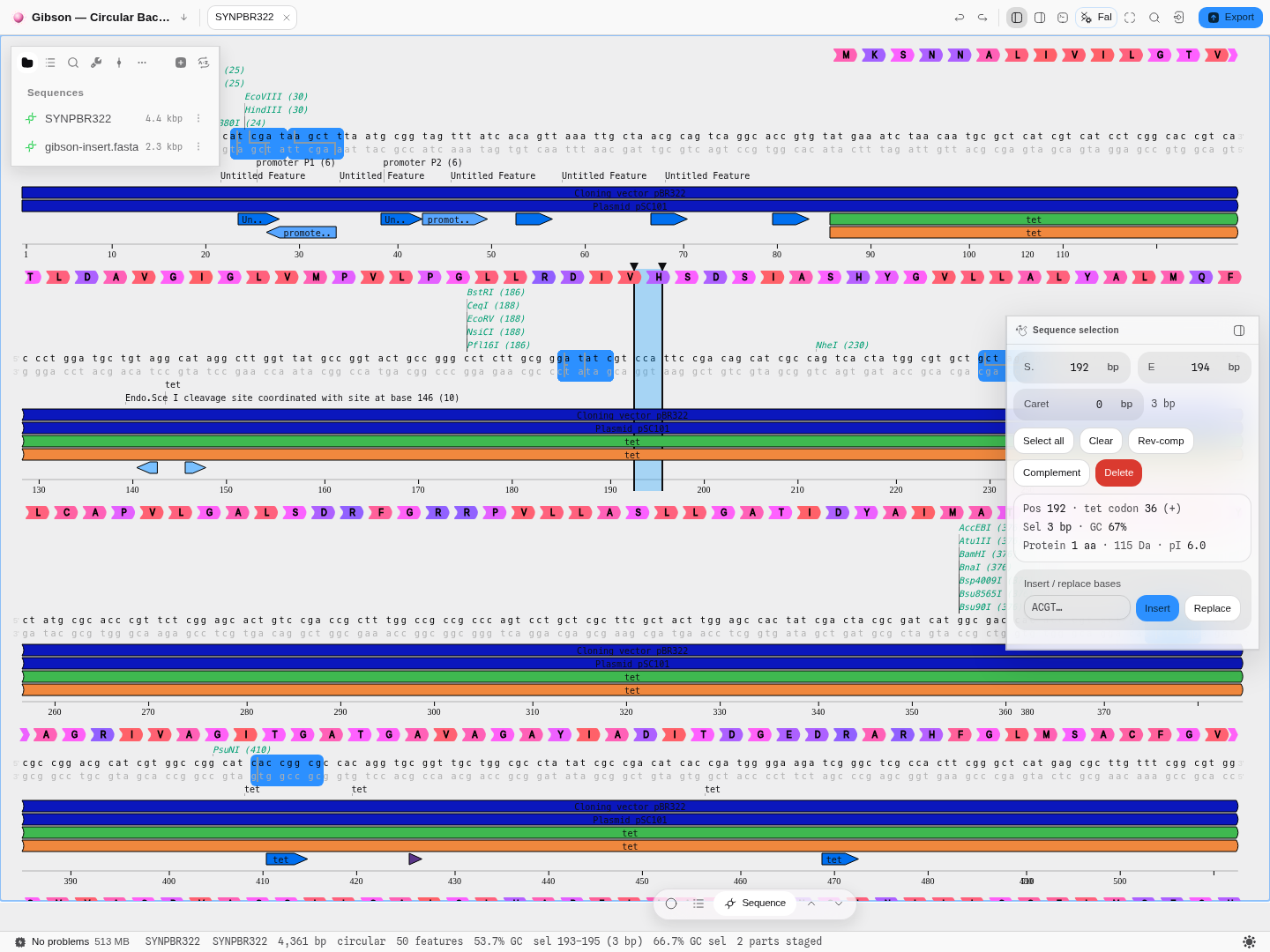 Three bases selected with Shift + →, on real pBR322. The readouts are computed from the selection, not from the click:
 66.7% GC across those three bases, and the panel places them at codon 36 of tet, plus strand — a 1 aa, 115 Da translation.
The selection is the workbench's shared context: whatever you select here is what the next tool acts on, so a keyboard selection feeds Digest, Primer design, CRISPR and the rest with no re-typing of coordinates.
Reading the numbers. The status bar reports the selection in the 1-based, inclusive convention
biologists write in — sel 193–195 (3 bp). The selection panel's S./E. fields are 0-based
offsets, which is why they read 192/194 for the same three bases. Both describe the same span.
Typing bases
With the sequence focused, just type a base. A letter key opens the insert popup anchored at the caret:
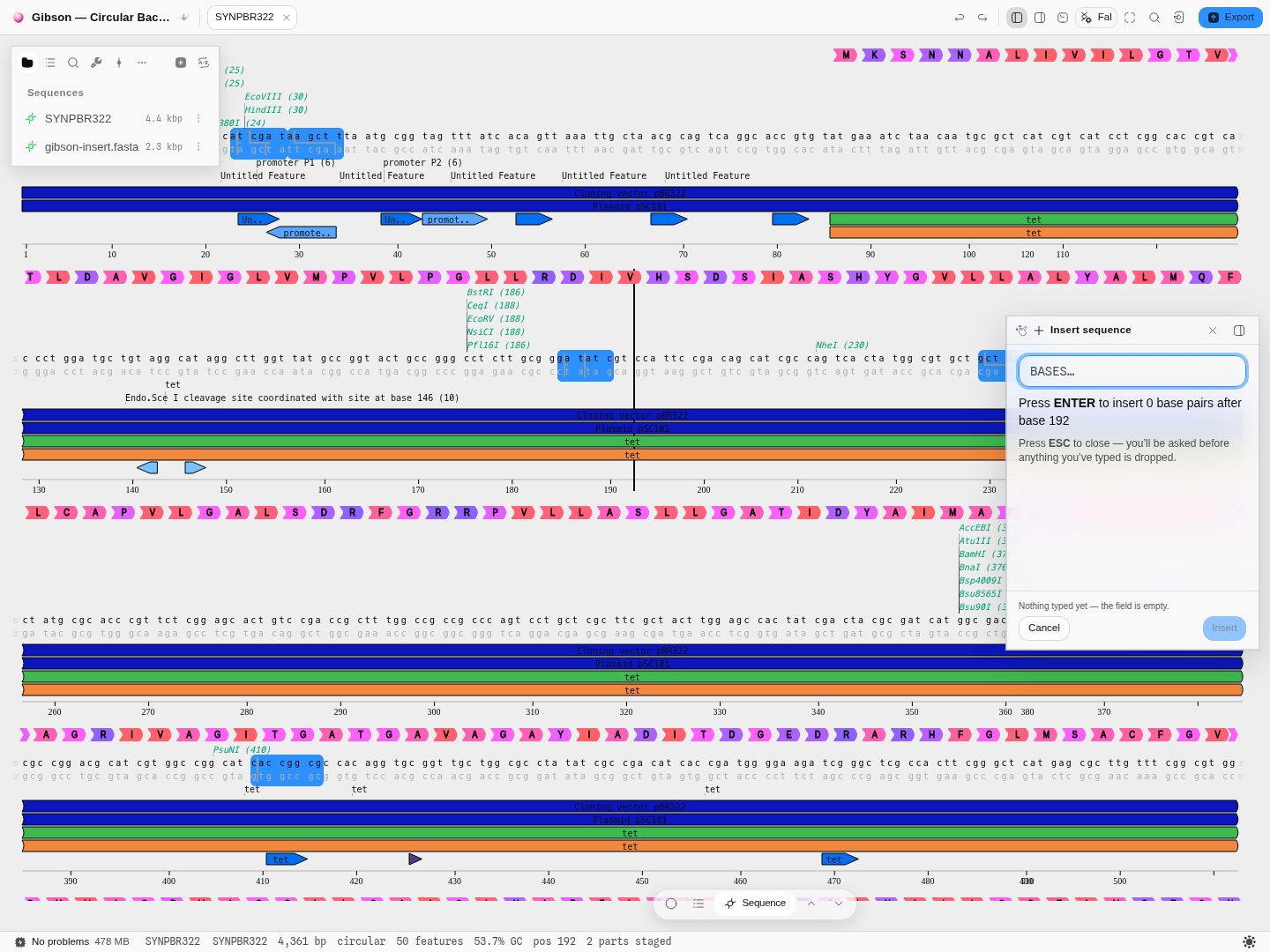 Typing opens the popup where the caret is and tells you exactly where the insert will land — "after base 192" — before you have committed anything.
Type the bases you want and press Enter. The popup counts as you go (insert 4 base pairs after base 192), so the length is confirmed before it is applied. Esc closes it, and if
you have typed anything you are asked before it is dropped rather than losing it silently.
Three details worth knowing, because they are all deliberate:
- Letters,
-,.and*open the popup. Digits do not. A typed number is never an edit — it is far too easy to hit one while reading coordinates. - Once the popup is open, you are typing into the popup, not into the sequence. It will not reopen underneath itself, and the same guard means typing in any dialog or search field never reaches the bases.
- Ctrl and Cmd combinations never insert. Cmd + A selects all; it does not type an adenine. That whole range of keys belongs to the commands below.
If the sequence is read-only or base editing is switched off, typing says so rather than doing nothing.
Deleting
Backspace and Delete both remove the current selection.
Select three bases and press Backspace: the record goes from 4,361 bp to 4,358 bp and the caret settles where the bases were. Cmd/Ctrl + Z puts them back, selection and all.
When the selection is exactly an annotation, you get asked. Deleting a span that lines up precisely with a feature is ambiguous — you might mean "remove this region from the molecule" or "remove this label and keep the bases". Rather than guessing, the editor offers both, and says how many base pairs each choice costs. A locked annotation is not offered for deletion at all, matching the right-click menu. Every other selection deletes immediately, with no extra click.
The rest of the shortcuts
Everything above acts on bases and the caret. The editor also carries a full command set — save, copy, cut, paste, undo/redo, find, go-to, select all and inverse, reverse-complement, new feature and new part, rotate to caret, digest, PCR, case and font toggles, and one command per tool panel.
The live list is Settings ▸ Shortcuts, and every one of them is rebindable there. That is the only list worth trusting: the bindings are yours to change, so a table printed on a page would be wrong for anyone who has changed one, and would drift from the build besides.
Two things about that screen are worth knowing before you go looking:
- Shortcuts are scoped to the focused canvas. The same chord can mean one thing on the Sanger trace and another on the read pileup, because only one canvas is ever focused. That is deliberate, not a clash — the screen only flags a genuine double-booking within one scope.
- A canvas binding shadows the editor-wide one while that canvas has focus, and falls back to the editor-wide meaning when it does not. So a key you set for one view does not go missing everywhere else.
Caret movement and base typing are not on that screen. They are not commands — they are bound to the sequence canvas itself, so that arrow keys and ordinary letters keep behaving normally everywhere else in the app. This page is their documentation.
Pitfalls
- Arrow keys stopped working. The canvas lost focus — click the sequence once. This is the single most common cause, and it happens every time a dialog closes.
- You typed and nothing happened. Either the record is read-only, or a field somewhere has focus. The editor tells you which when it refuses.
- You meant to delete a label and lost bases. Only exact-annotation selections raise the question; a selection one base wider deletes sequence without asking. Undo is one keystroke.
posand the panel'sS.disagree by one. They are meant to — 1-based inclusive for reading, 0-based for the coordinate fields. Neither is wrong.
Related
- The workbench tour — what each region of the editor is for
- Sequence map — the canvas these keys drive, and everything else it draws
- Your first project — if you have not opened a starter yet
The workbench tour
One editor, one shared context, and about six places things can be.
Files and formats
83 formats across 138 extensions, all parsed in your browser, and 29 of them written back out. This page is about what happens to your file when it arrives — what opens as what, what each format keeps, what can be converted into what, and the five cases that will not open at all.