
Scripting the open document in Python and R
Every workbench eventually meets the analysis nobody built a panel for — the odd normalisation, the one-off plot, the reviewer who wants the same figure with a different threshold. The console is a real Python and a real R interpreter, running on this machine, with the document you are looking at already bound to a variable. Nothing is uploaded, and nothing has to be exported first.
Open it with ⌘J (Ctrl+J on Windows and Linux), from the console button in the top bar, or from the command palette. It docks beside the canvas rather than over it, so you can keep reading the map while you type against it.
When to reach for it — and when not
Reach for the console when the question is arithmetic on your own data: a summary the panels do not compute, a custom plot, a table joined against a spreadsheet in the project, a quick sanity check on a number a tool just gave you.
Do not reach for it for anything the workbench already does properly. A restriction digest, a Tm, a CAI, an alignment or a guide score computed by hand in the console is a number with no provenance, and the built-in tools are checked against the reference implementations the field uses. The console is for the gap, not for re-deriving the tools.
What is already bound
Before every run, the console re-reads the editor and rebinds melad — so the code you are about
to run always sees the sequence currently on screen, not the one that was open when you started.
| Python | R | What it holds |
|---|---|---|
melad.seq | melad$seq | the focused document's bases (or residues) as a string |
melad.sequence.name · .length · .circular · .isProtein | melad$sequence$… | identity and topology |
melad.features · .parts · .primers | melad$features | the annotations; in R a data.frame you can subset() |
melad.selection.start · .end · .length · .seq | melad$selection$… | the live canvas selection, already sliced out |
melad.files | melad$files | every file in the project, with the path it is mounted at |
melad.path(name) · .open · .read | melad$path(name) | resolve a project file by name |
melad.save(name, data) · .out(name) | melad$save · melad$out | write a result back into the project |
Type melad. (or melad$) at the prompt and the completions list exactly these, with a one-line
summary each. They are generated from the same declaration the runtimes are built from, so the
prompt can never offer you a name the interpreter does not have.
Coordinates, and the two conventions that bite
Annotation bounds are 0-based and inclusive — the same convention the canvas uses — and strand
is +1 or -1. A feature reported as start = 0, end = 99 is the first hundred bases, so its
length is end - start + 1. If you are used to slicing GenBank's 1-based inclusive coordinates,
subtract one from the start and nothing from the end.
A selection that spans the origin of a circular molecule is already handled: melad.selection.seq
is the sliced sequence you actually highlighted, joined across the origin, not a negative range.
A walkthrough, with the numbers
This is the Protein tools starter, whose first record is the 4,733 bp circular cloning vector CVU55762. Follow along and your numbers should match, which is the point of quoting them.
1 · Open the console and let the runtime start
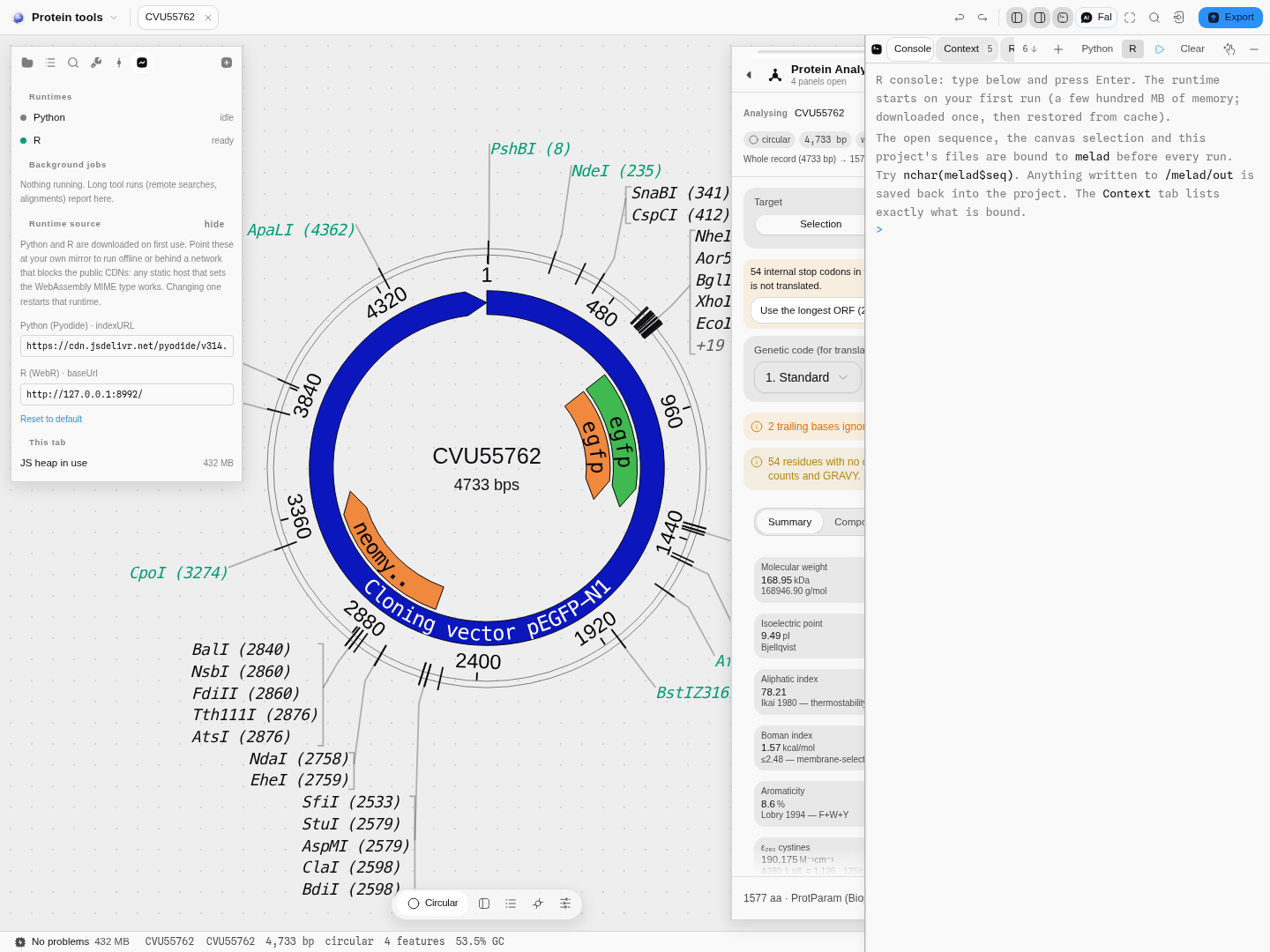
The console opens beside the canvas, not over it. The first run downloads the interpreter — a few hundred megabytes for Python, cached on this device from then on, so it happens once and never again.
2 · Ask the document about itself
len(melad.seq), melad.sequence.name, melad.sequence.circular, len(melad.features)returns (4733, 'CVU55762', True, 4): the length, the name, the topology and the feature count
shown in the status bar at the bottom of the window. If those numbers disagree with the status bar,
you are looking at a different tab than you think.
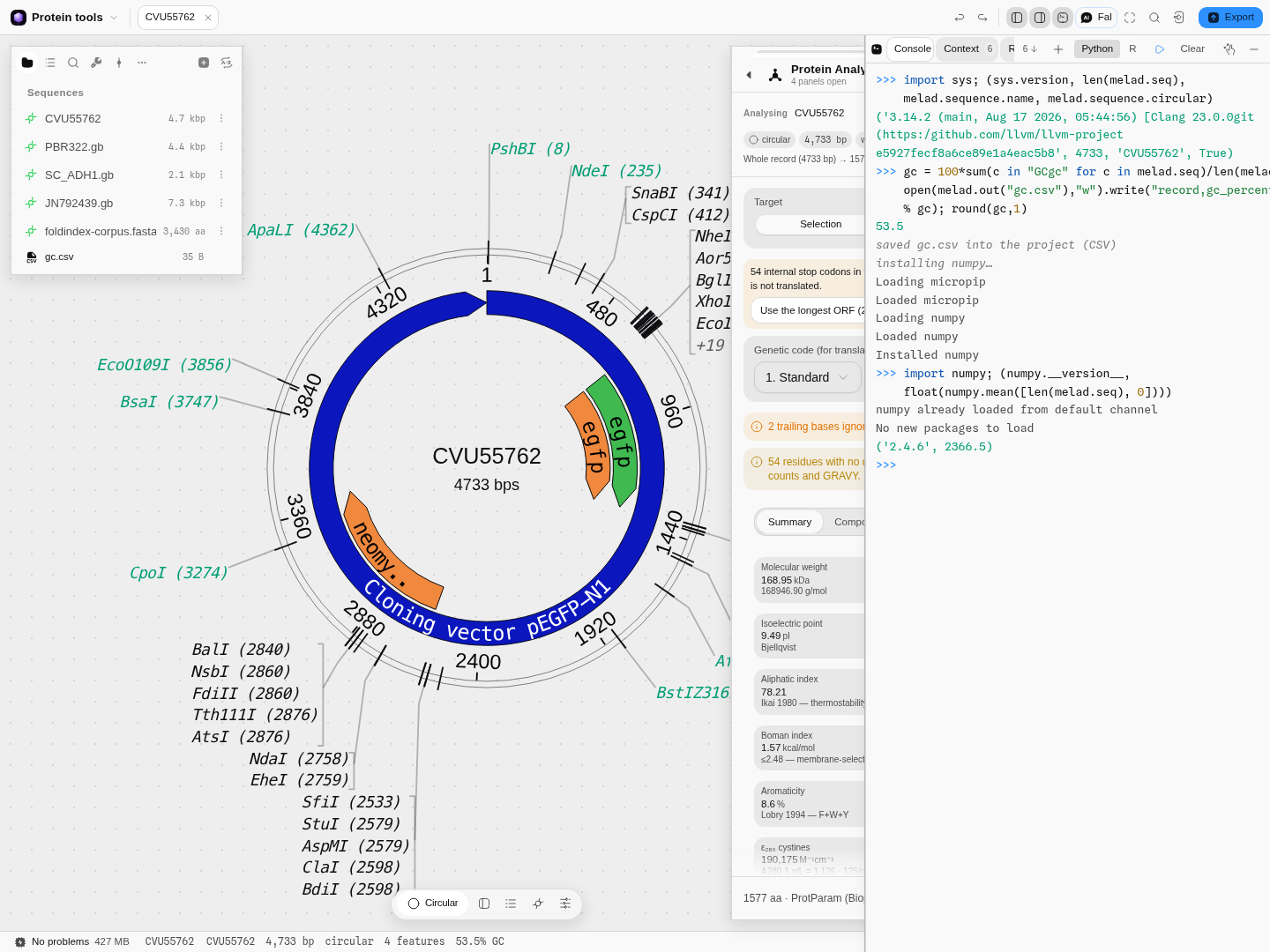
One session, start to finish: the document's own numbers, a GC content computed from the bases, the
result written back — gc.csv is now in the project's file list on the left — and NumPy installed
into the running interpreter and imported. The status bar agrees with the GC number, which is the
check worth making on your first run.
3 · Compute something the panels do not
s = melad.seq.upper()
round(100 * (s.count("G") + s.count("C")) / len(s), 1)
gives 53.5, matching the GC readout in the status bar.
Note the .upper(), because this is the pitfall that quietly gives a wrong answer. Sequences
read from GenBank arrive in the case the file used, which is usually lower — so counting "G" on
the raw string returns 0, and a GC content of 0.0% looks like a real result rather than a
mistake. Uppercase before you count anything, in either language.
4 · Select something and re-run
Drag a region on the map or in the sequence view and run the same line again: melad.selection is
now a real object, and melad.selection.seq is exactly the bases you highlighted. Nothing needs to
be re-sent — the binding is refreshed on every run.
5 · Send a result back to the project
Anything written to the output directory becomes a real file in the project:
melad.save("gc.csv", "name,length,gc_percent\n%s,%d,%.1f\n"
           % (melad.sequence.name, len(melad.seq), 53.5))
The console reports saved gc.csv into the project (CSV), and the file appears in the Files rail
beside the sequences — versioned, exportable, and openable in a tab like anything else you imported.
A result the console cannot parse is still saved, as raw bytes with a note, because an unfamiliar
extension is not a reason to throw your output away.
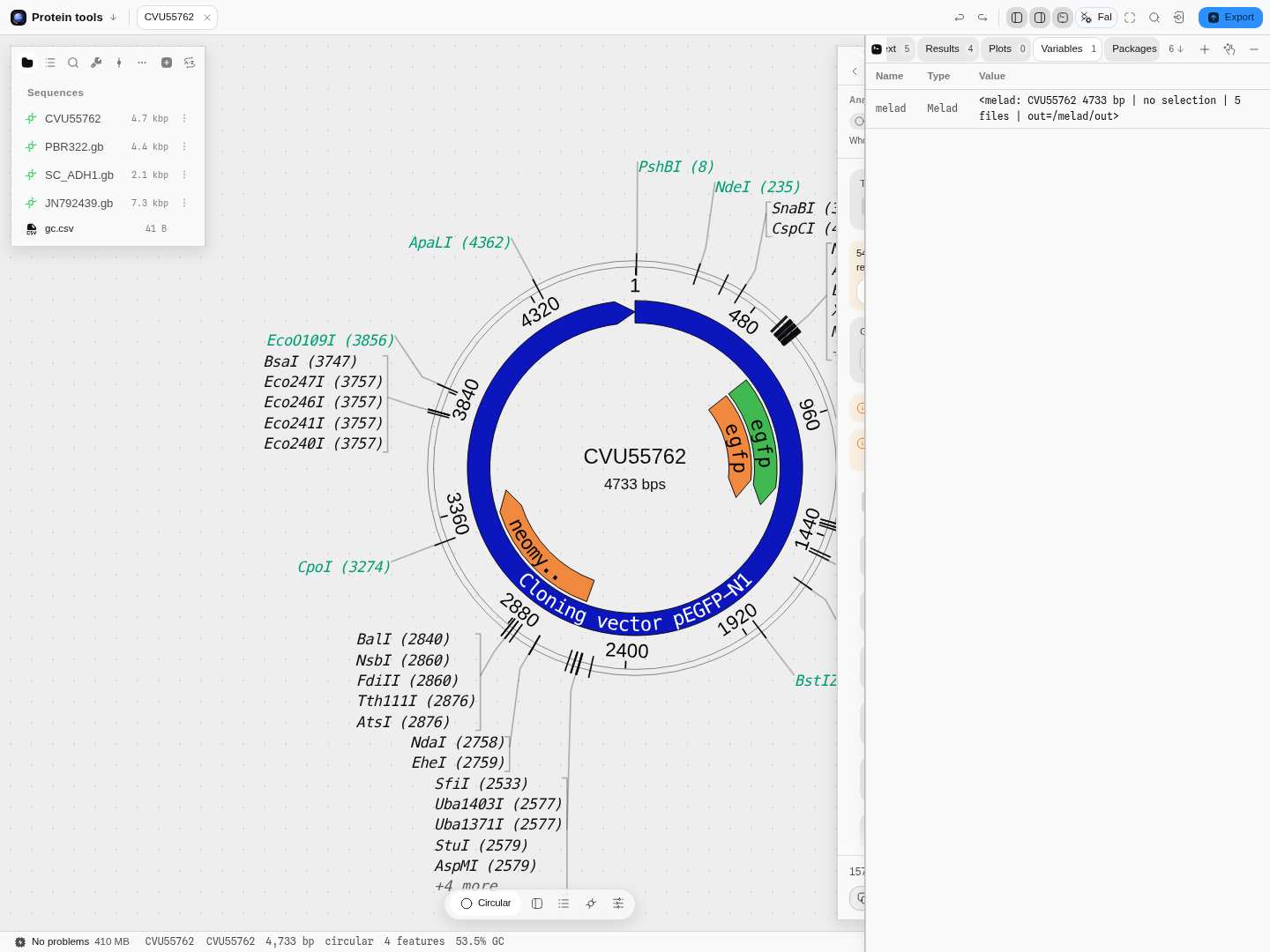
The Variables tab lists whatever the interpreter is holding — here just melad, which describes
itself: the record, whether anything is selected, how many project files are bound, and where output
goes. Your own variables appear beside it as you define them.
6 · The same three questions in R
Switch the console to R and the bindings are the same object under R's own conventions, so the answers must match. On this starter they do:
nchar(melad$seq)                                  # 4733
round(100 * nchar(gsub("[^GCgc]", "", melad$seq)) / nchar(melad$seq), 1)   # 53.5
nrow(melad$features)                              # 4
One R-specific pitfall, and it looks like a bug the first time. melad$features is a
data.frame, which is what you want for subset() and [ — but that means length() returns
the number of COLUMNS (5), not the number of features. Use nrow(). It is the same trap R has for
every data frame; it is just easy to misread here because 5 is a plausible feature count.
Plots work the same way. Base graphics render inline in the console and collect in the Plots tab:
w <- 100
s <- seq(1, nchar(melad$seq) - w, by = w)
g <- sapply(s, function(i) 100 * nchar(gsub("[^GCgc]", "", substr(melad$seq, i, i + w - 1))) / w)
plot(s, g, type = "l", col = "#0072B2", lwd = 2,
     xlab = "position (bp)", ylab = "GC %",
     main = paste(melad$sequence$name, "GC content, 100 bp windows"))
abline(h = 53.5, lty = 2, col = "grey40")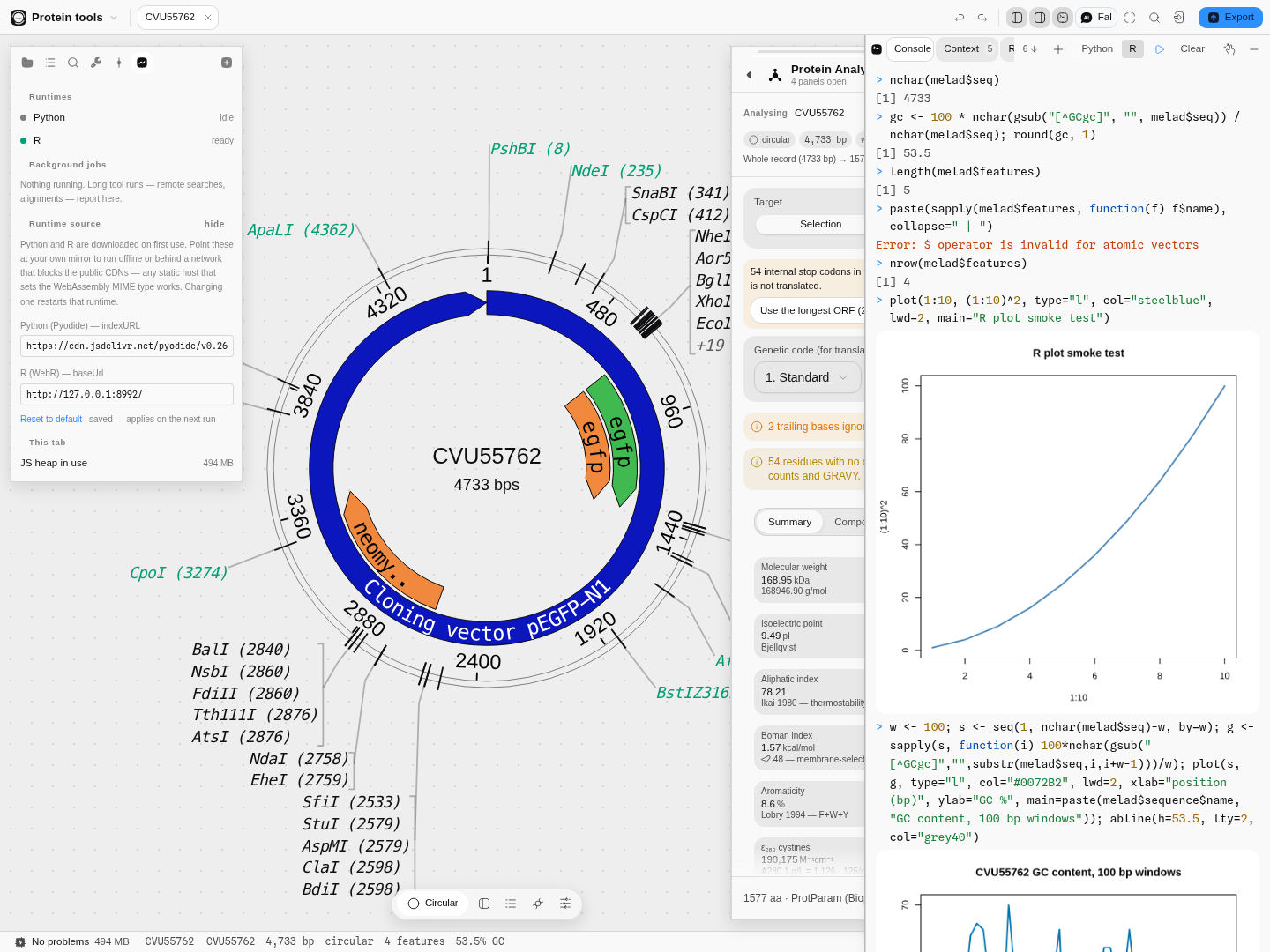
The whole sequence's GC is a single number; the windowed profile is the shape behind it. The dashed line is the 53.5% whole-record value the status bar shows, so you can see which regions pull it around.
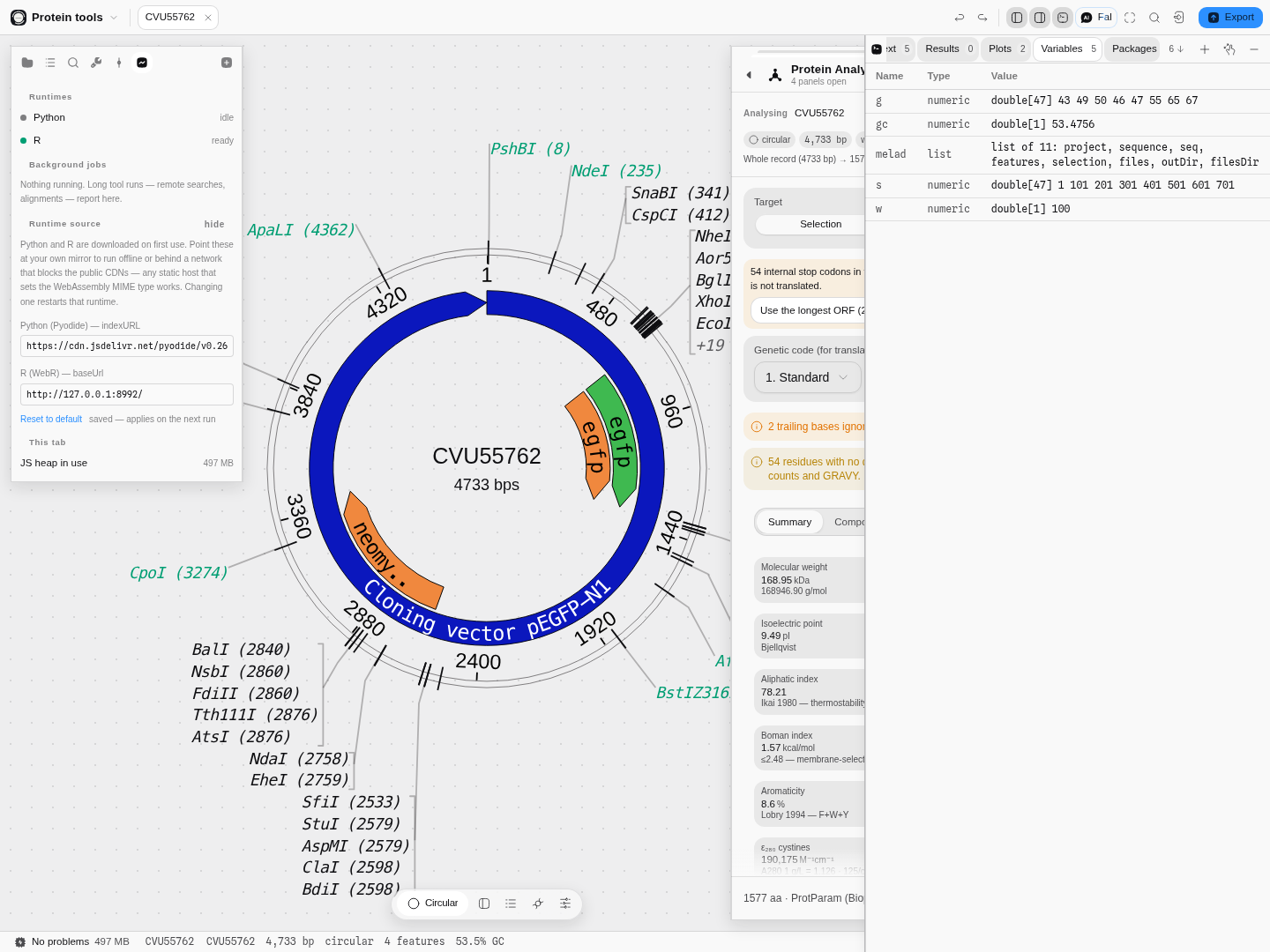
The Variables tab reads the R workspace the same way it reads Python's: every top-level binding
with its type and a bounded summary. melad is described rather than printed, because printing it
would build the entire sequence into a string on every run.
Getting data in
You rarely want to paste a sequence into the prompt. Instead, hand things to the console from where they already are:
- any file in the project — Use in console, which mounts the real bytes and hands you the path,
so Biopython or
readropens a real file; - the sequence canvas — right-click, Send Selection to Console or Send Sequence to Console;
- a read in a pileup, a trace, a row of an alignment, or a whole alignment as a named matrix — each from its own right-click menu.
Small values are pasted as a literal; anything larger is written to a project file and the snippet reads it back, so a 200 kb read never becomes a 200 kb line in your prompt.
Project files are copied into the interpreter's filesystem up to 16 MB each and 64 MB per sync. A larger file is still listed, with the reason it was skipped, and a Mount anyway button — a gigabyte-scale alignment in a browser interpreter is an out-of-memory crash, not a convenience, so the limit is stated rather than silently applied.
Packages, and what each language can really install
The Packages tab installs into the running session and lists what this device already has cached.
| What installs | |
|---|---|
| Python | The scientific stack — NumPy, pandas, SciPy, matplotlib — plus Biopython and any pure-Python package from PyPI. A package with compiled C extensions that has not been built for the browser will not install. |
| R | Base R, the graphics devices, and the CRAN subset built for the browser. Bioconductor is essentially absent — R here is statistics and plots, not a Bioconductor workstation. |
Both languages are now checked end to end against this same starter: the document's numbers, a computed statistic that must agree with the status bar, a figure, the workspace readout and a package install. Each language starts on its own, so a problem with one leaves the other working.
An install is only reported once the interpreter confirms it. R's installer returns without complaint when a package could not be fetched, so a failed install used to look like a successful one; the console now asks R what it actually has and, when a package is absent, names it and says which of the two things went wrong — the package is outside the browser CRAN subset, or the repository could not be reached from your network. What is cached on the device is the download, not the installed state: every session starts a clean interpreter, so installing again is fast and works offline, but it is still something you do.
Figures are captured automatically: any matplotlib figure, or any plot an R graphics device draws, appears inline in the console and in the Plots tab.
Stopping a run
Stop terminates the interpreter — it does not interrupt it. A browser interpreter cannot be interrupted mid-loop without a security context this app deliberately does not require, so the honest capability is a kill: your runaway loop ends, and so do your variables. The button says so before you press it, and the runtime restarts on your next run. This is the escape hatch from an infinite loop, and the only one.
Running offline, or behind a network that blocks the CDNs
Python and R are downloaded on first use from public content delivery networks, then cached on this device. If your institution blocks them — or you work air-gapped, or you must pin an audited copy — point the console at your own mirror under Jobs & runtimes → Runtime source in the left rail.
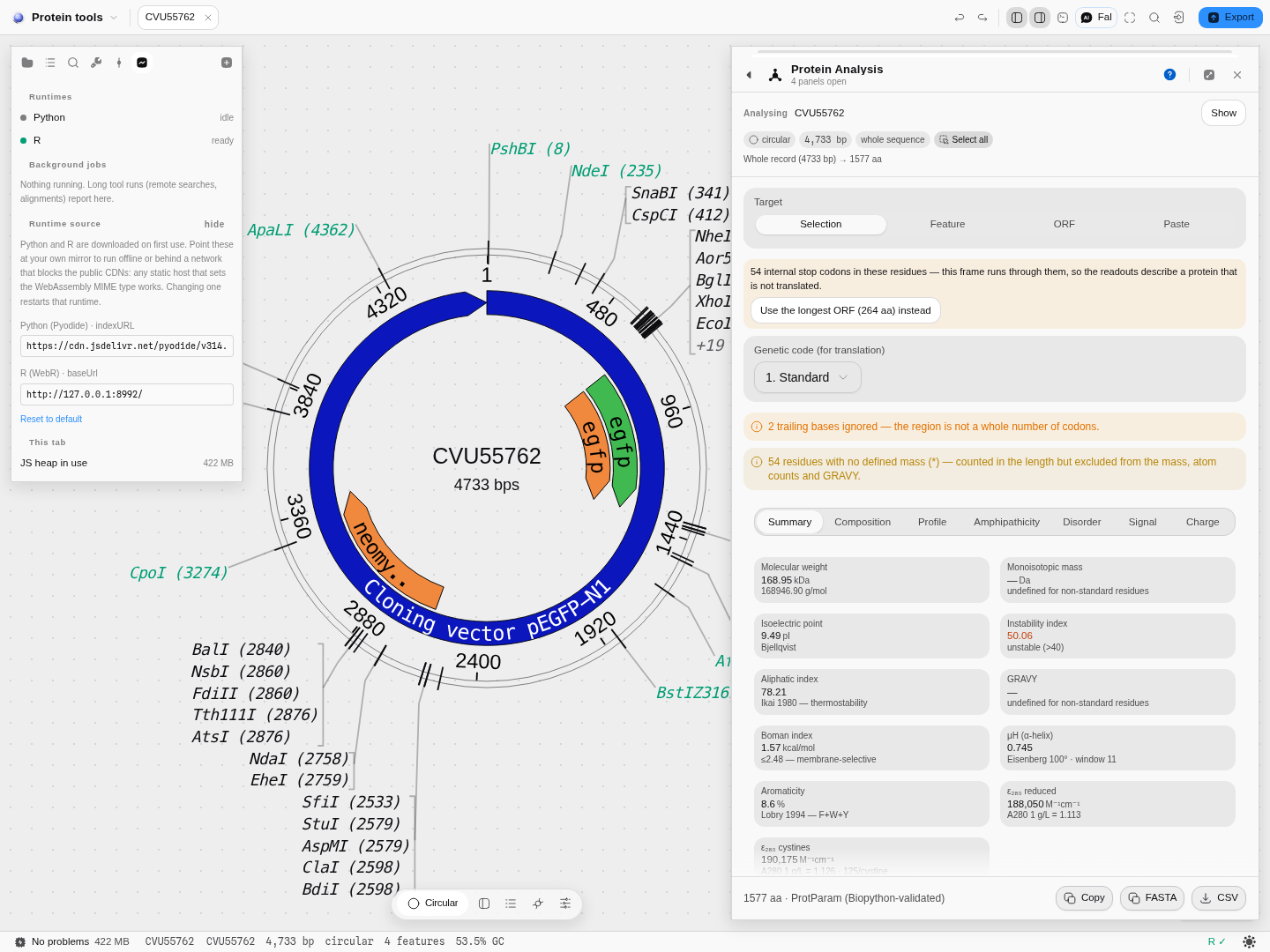
The two base URLs, with what each one is. Any static web server that serves WebAssembly with the
correct MIME type will do, including one on the same machine; an address of the form /runtimes/…
serves them from the workbench's own origin, which is what a fully offline install wants.
Both are the upstream projects' own documented settings, so a mirror built by following their deployment instructions will work unchanged. Changing either one restarts the interpreter — a running one cannot be re-pointed, and the console tells you it terminated rather than pretending the change applied.
What this gives you that a notebook beside the app does not
A Jupyter notebook next to your sequence editor is two programs that do not know about each other: you export a FASTA, you compute, you import the answer back, and the two drift apart the moment you edit the sequence. Here the interpreter is inside the document — the binding refreshes on every run, the selection you just made is already sliced, project files are already mounted, and results land back in the same project with the same version history as everything else. Nothing leaves the machine at any point in that loop, which is the same promise the rest of the workbench makes.