Your first project
Five minutes, on a real plasmid, ending with a file you can open somewhere else.
You need nothing of your own. The lobby ships 40 starter projects built from real files in the
repository's /data — not toy sequences written to make a demo work, but the actual test corpora
the engines are validated against. This page uses one of them so every number below is one you can
reproduce.
Step 1 — Open the lobby
Press Start a project. On a first run the lobby is empty and says so:
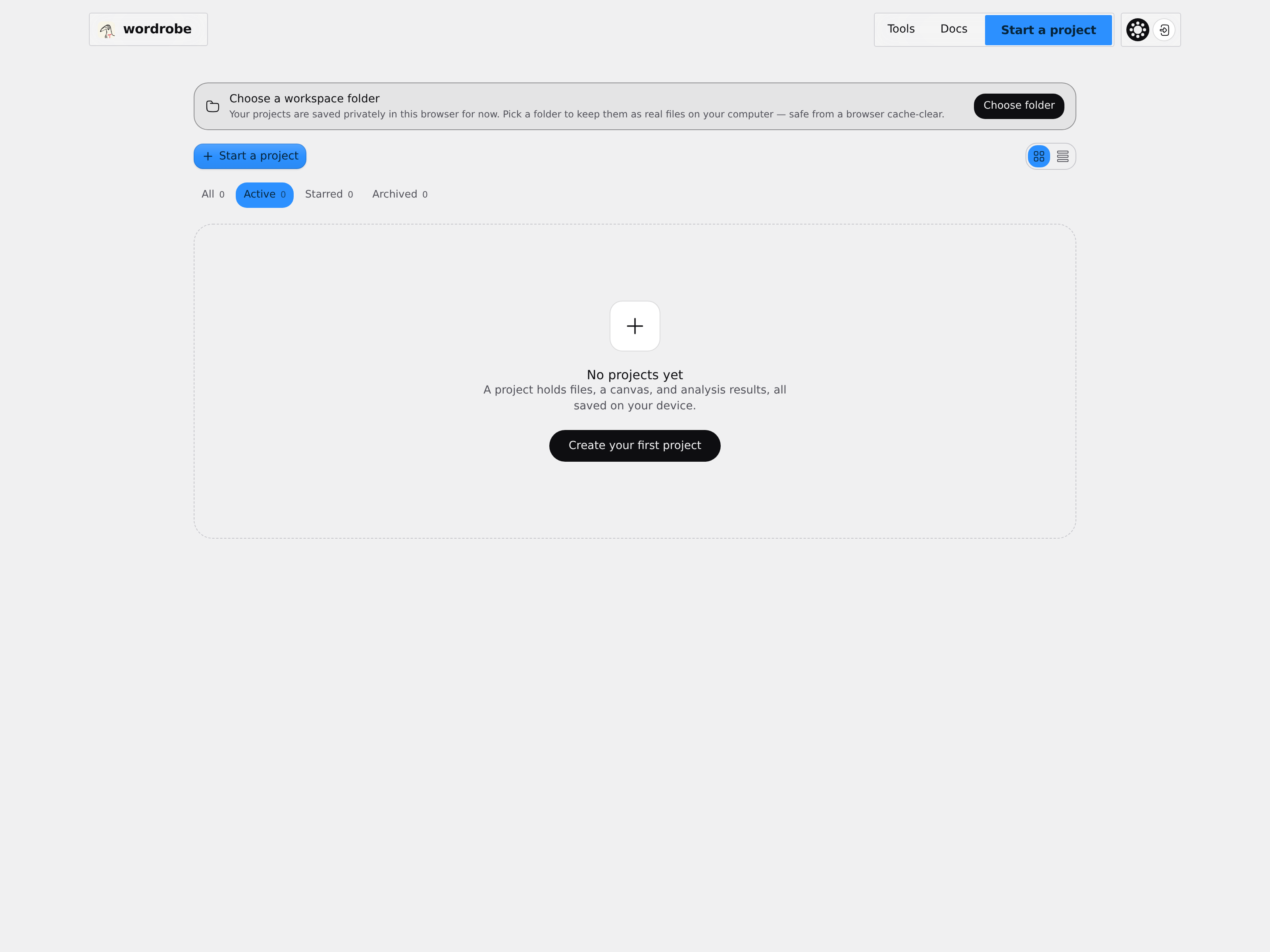 The lobby on a first run. The strip at the top is the folder prompt from Install and open — take it now if you have not.
Step 2 — Take a starter
Start a project → Samples. Forty cards, each one a ready-made project:
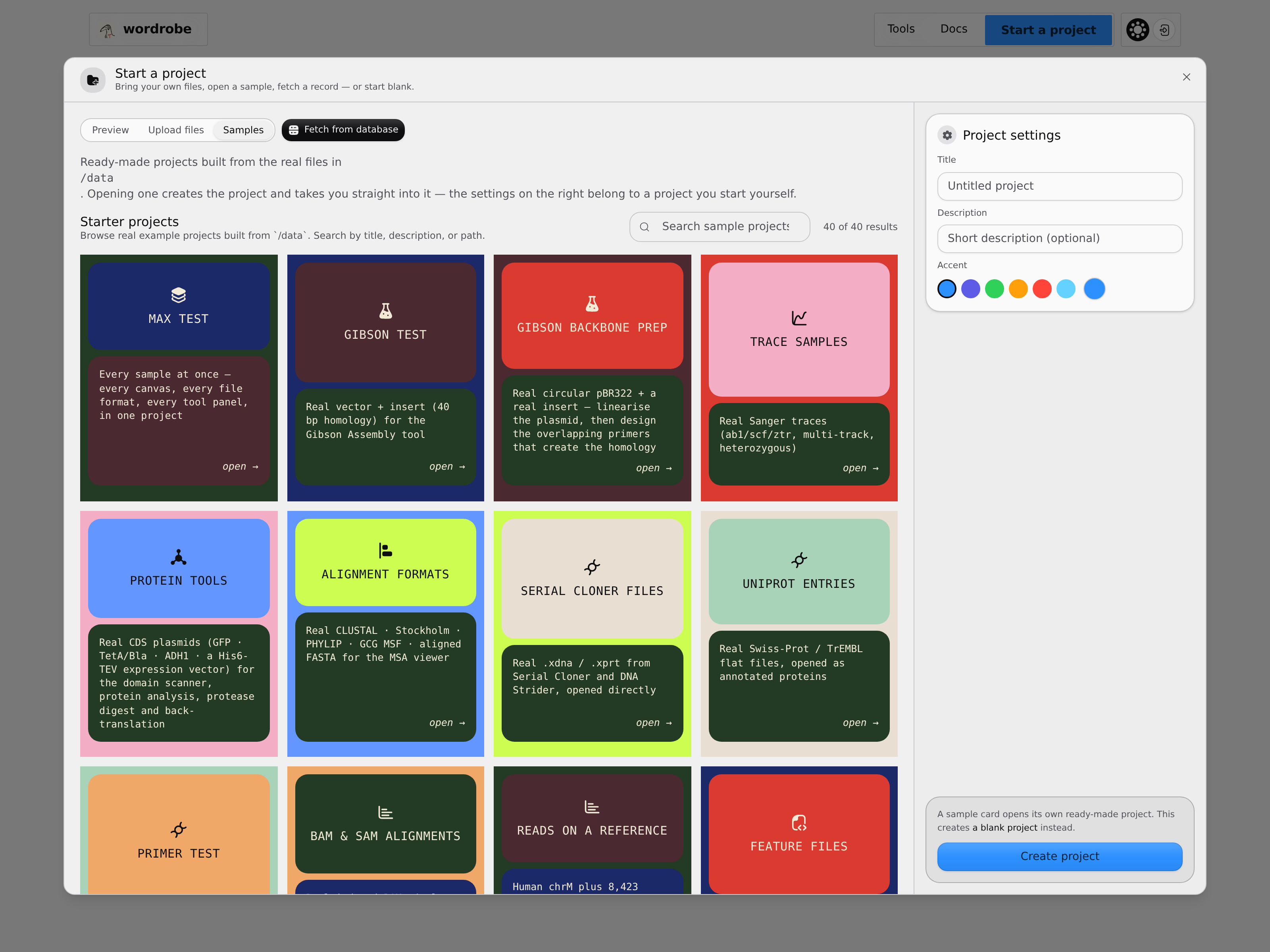 Every card is a real project.
 open → builds it and takes you straight into the editor.
For a first run take Virtual gel bench — it opens pBR322, a real 4,361 bp cloning vector with 50 annotated features, which is enough of a molecule to be worth looking at and small enough to see whole.
Every starter's description says exactly which real files it carries and what it is for. If one names a capability you came here for, take that one instead — they are all equally real.
Step 3 — Read the map
You land on the circular map with the plasmid open.
Four things are on screen, and knowing which is which is most of learning the app:
| Where | What it is |
|---|---|
| The middle | The canvas — the plasmid, drawn. Circular here; the switcher at the bottom offers linear, sequence and split views |
| Top left | The project menu, and the tab strip: one tab per open document |
| Left rail | Files, features, search, tools, timeline. It auto-collapses once a file is open, to give the canvas the room |
| Bottom | The status bar: SYNPBR322 · 4,361 bp · circular · 50 features · 54% GC, computed from the real record |
Click a feature on the ring. It selects, and the selection is now the thing every tool will act on. That is the shared context the whole workbench turns on — you will not be re-typing coordinates into a form.
Step 4 — Run something on it
Tools → Restriction Digest.
The panel opens docked in the right rail, already pointed at the open construct. Pick an enzyme — the picker shows each enzyme's real cut count on this molecule, so you are choosing from what actually cuts rather than from a catalogue of 250 names.
Take BamHI (1 cut) and AluI (17). Press run, and you get the fragments, their exact lengths, the
ends each cut leaves, and a simulated gel of the lanes.
Check one number by hand. The fragment table's spans are 1-based inclusive, so a fragment listed
1,999 → 2,055 is 2055 − 1999 + 1 = 57 bp, and that is what the length column says. The point is
not the arithmetic — it is that you can check it, on every readout in the app.
Step 5 — Get it out
Export ▾, top right. A product of a tool is an ordinary sequence, so it exports as one:
GenBank with its features, FASTA, the image of the map, or the project as a .melad container.
And the thing worth knowing: the files are already on your disk. If you took a workspace folder
in step 1, the project is a directory there right now, with project.melad and the real sequence
files sitting beside it under their own names. Export is for handing work to someone else, not for
rescuing it from the app.
What you have learned
- A project holds files, a canvas, results and history together, and every tool reads whatever is currently open.
- A selection on the canvas is the input to the next tool.
- Every readout is a real computed number you can check, from a real file.
Next
- The workbench tour — the rails, the palette, the menu bar, and how context moves between tools.
- Files and formats — bring your own files.
- Clone an insert into a vector, and prove it worked — the first real workflow, end to end across five tools.