
The workbench tour
One editor, one shared context, and about six places things can be.
The thing to internalise first, because everything else follows from it: this is not a drawer of utilities that happen to share a website. Every tool acts on whatever is currently open, reads the current selection, and can hand its result to the next tool without an export step. A panel that only talked to itself would be a bug here.
The canvas
The middle of the screen. It draws whatever kind of document is on the active tab — a circular plasmid map, a linear map, the sequence, a Sanger trace, a read pileup, a variant table, an alignment, a tree, a spreadsheet. There are 22 of them, one per document kind, and each has its own page.
The view switcher floats at the bottom of the canvas: circular · linear · sequence · split, plus the display controls for that view. What it offers changes with the document, because a trace has no circular view and a plasmid has no per-base quality track.
The canvas is an input, not just an output. Drag on it to select; the selection is what the next tool will act on. Right-click for the context menu, which offers the operations that make sense for what is under the cursor.
Charts, and taking them with you
Wherever the workbench draws a curve — a quality profile along a read, hydropathy along a protein, GC before and after an optimisation, an amplification curve — it is drawing on one shared chart frame. That is why the axes, the hover readout and the legend behave the same in every panel, and it is why one habit is worth learning once.
Every chart can leave the app as a figure. Hover a chart and a small control appears at its top right:
| What you get | |
|---|---|
| Copy image | The chart straight onto the clipboard, ready to paste into a slide or a lab notebook |
| Save PNG | A raster at twice screen resolution, so it survives being placed in a document |
| Save SVG | Vector, with the colours baked in — the one to use for a manuscript figure, because it stays sharp at any size and can still be edited in a drawing program |
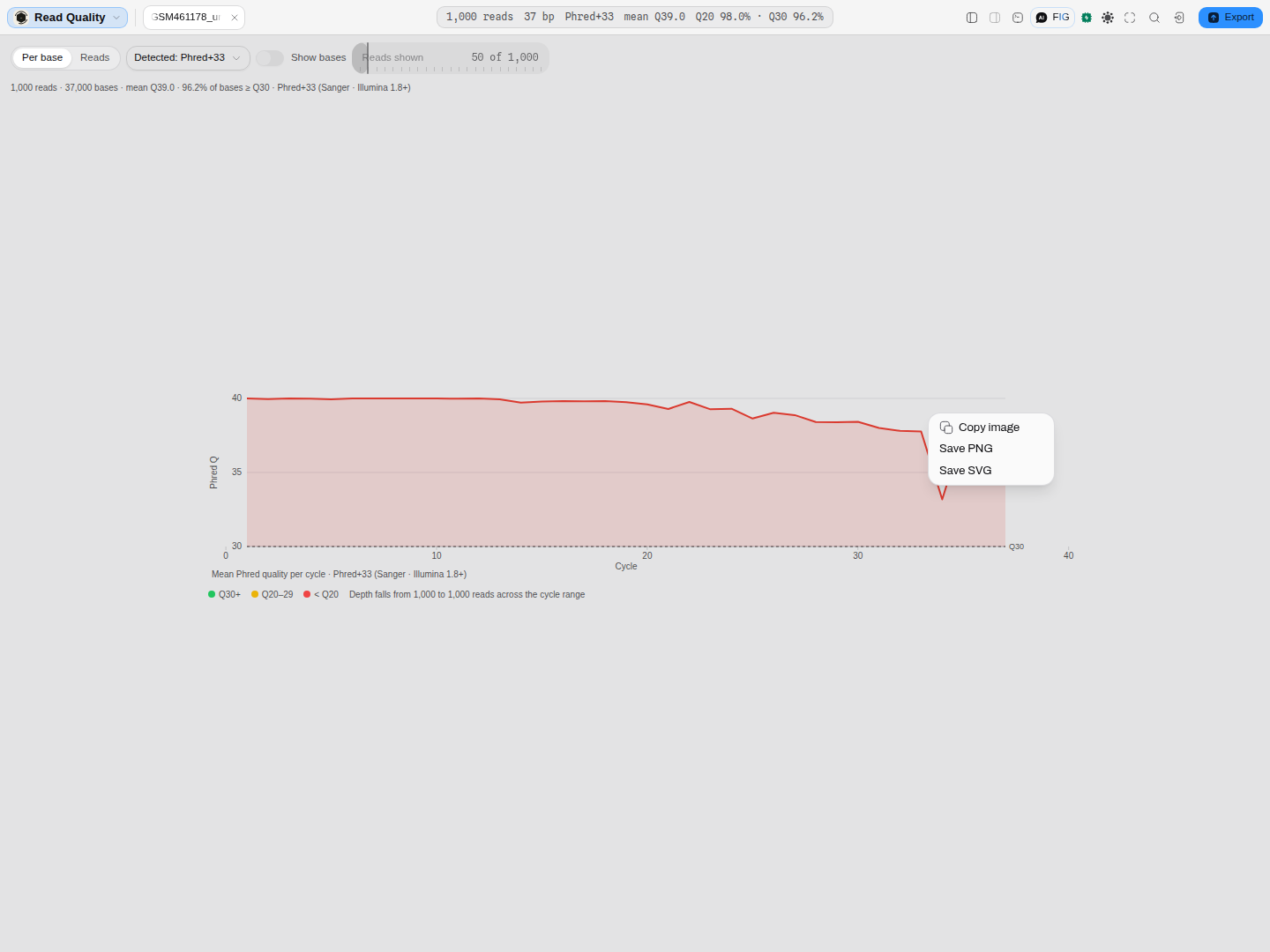 The same three options on every chart in the workbench, so a figure never has to be recovered by screenshotting the screen.
Charts stop widening past the point where extra width stops adding information. A curve stretched across a whole 27-inch display is not more precise — it is flatter, and a flat curve reads as "nothing is happening" whether or not that is true. Charts cap at a readable width and centre, with the caption and the legend travelling with them.
Colour is never the only thing carrying identity. Series are drawn from a fixed palette checked for the common forms of colour-vision deficiency and for contrast against the page, and every series is also named — a direct label on its own curve, or a legend entry beside it. If you print a figure in greyscale, the names survive.
The tab strip
Top left, beside the project menu. One tab per open document. A project usually has several — the plasmid, the trace that came back, the primer table — and tools that produce a new document open it as a new tab rather than replacing what you were looking at.
The left rail
Five panes, and it auto-collapses when you open a file so the canvas gets the room. ⌘B toggles
it, and so does clicking the pane you are already on.
| Pane | What it holds |
|---|---|
| Files | Every file in the project. Note it labels a sequence by its record name, not its filename — PBR322.gb appears as SYNPBR322 |
| Features | The annotations on the open construct, jumpable |
| Search | Sequence and feature search, mismatch-tolerant |
| Tools | The rail launcher for all 49 tools, grouped by bench task |
| Timeline | Version history and checkpoints |
The right rail — where tools live
A tool opens as a docked panel on the right, beside the canvas rather than on top of it. That is deliberate: you can see the map and the tool's readout at the same time, and a mark the tool puts on the canvas is visible while you change its settings.
Panels are seeded from the live editor context when they open. Point a tool at a CDS by selecting it first, and the panel arrives already scoped to it.
Pasting a quantity into a number box
A number box reads what you paste in its own unit. 5 uL goes into a µL box as 5, 2e-3 M goes
into a mM box as 2, and 250 nM goes into a µM box as 0.25. A note under the box says what it was
read as. The conversion only ever moves between SI prefixes of the same unit. A unit of a different
quantity (5 kg into a µL box) is refused, and so is a unit pasted into a box that takes a bare
number.
Commas are where pasting goes wrong, because the same characters mean different numbers in
different countries. The box follows one rule. A thousands group always has exactly three digits,
in every locale that groups digits, so 1,5, 0,250, 1.500,5 and 1,500,000 each have only one
reading and are taken. A single comma or point followed by exactly three digits, such as 1,500,
is 1500 in the United States and 1.5 in Germany. The box refuses it, gives both readings, and asks
you to type the number. A wrong guess there would change a concentration a thousandfold without
anyone noticing.
The menu bar
Six menus. Two are worth calling out:
- Tools is rendered from the tool registry itself, grouped by bench task — Cloning, Amplify, Design, Analyze, Sequencing, Record, Documents. It cannot drift from what the app actually ships, because it is generated from the same declaration the ledger is.
- File carries the export set: GenBank, FASTA, SnapGene, Serial Cloner, the map image, and the
project as a
.meladcontainer.
Also there: Open URL… and Fetch from database…, which pull a record — whole, or just a region of it — from NCBI, ENA, UniProtKB, Ensembl and the rest of EBI Dbfetch by accession, rather than making you download a file first. It also searches all of them at once by name, so "BRCA1 mRNA" works when you do not have an accession to hand.
The command palette — ⌘K
Every command in the app, searchable by name. Faster than the menus once you know what a thing is called, and it is the only surface that reaches everything.
The console — ⌘J
A real Python and a real R interpreter against the open document. View → Send Sequence to Console and Send Selection to Console put what you are looking at into it, so you can compute on the actual bases rather than retyping them — and the sequence, the selection and the project's files are already bound to a variable before you type anything.
Full walkthrough, including what is bound, how results come back into the project, and how to run it offline: Scripting the open document in Python and R.
The status line
The line under the canvas reports what is true of the document in front of you, the selection inside it, and the tools that are running. It is contextual: each reading appears only when it has something to say, so the line changes as you work rather than showing a fixed row of dashes.
Hover any reading for the sentence that explains it — what the number means, how it was derived, and where a threshold came from.
What appears, by what you have open:
| You are looking at | The line reports |
|---|---|
| A sequence | record · length · topology · features · GC, plus the selection's coordinates, its GC and its melting temperature while a selection exists |
| A protein | record · residues · features. No topology and no GC: both describe nucleotides, and neither is a fact about the molecule |
| An alignment | sequences × columns · identity · conserved columns · gaps · the most divergent row |
| A Sanger trace | read length · sampling · mean quality · Q20 · the longest high-quality window · edited base calls |
| A phylogeny | tips and nodes · rooted or unrooted · the inference method · median branch support · weak and zero-length branches |
| A compare-to-reference run | reads against the reference · coverage · identity · uncovered runs · accepted variants · mixed peaks · protein-altering consequences |
| Variants, reads, a pileup, a table | the summary numbers for that file — variant classes and Ts/Tv, per-cycle quality and encoding, depth and mapping quality, sheet shape and column completeness |
| A plain text or unrecognised file | format · size · lines · the character set the file is written in, with the confidence behind that reading and the language it was recognised as, plus a warning when bytes could not be decoded, when lines end CRLF, or when the final newline is missing |
| A digest result | lanes and fragments · the band size range · which ladder calibrated the gel · pairs of bands too close to separate on agarose |
| A dot plot | which of the three engines drew it · axes · forward and reverse matches · longest run · coverage |
| A barcode set | set size and length · minimum and mean distance · how many errors the set corrects and detects · GC spread · shared leading bases |
A tool's readings stay on the line while you move to another tab, so a Gibson verdict, a dot plot or a barcode audit is still in view while you edit the sequence it was computed from.
Split the stage and both documents report, each under its own name, with the focused one marked. A reading is only ever shown beneath the file it describes, so two documents on one line cannot be confused for each other.
Text files are read in the encoding they were written in
A file that is not UTF-8 — a Cyrillic, Greek, Hebrew, Thai, Turkish, Japanese, Chinese or Korean document saved in its own legacy character set — is detected and decoded as what it is, rather than being shown as a field of replacement characters. The detection uses the Mozilla universal character-detection models, and it reports the confidence it puts on the answer.
It is a suggestion, not a verdict: the pane's Encoding control lists every candidate the detector scored, with its confidence, so you can choose another and the file is re-read. Three things are said out loud rather than guessed at — when nothing scored above the detector's minimum ("encoding unknown"), when the best answer is below 50% confidence, and when your browser has no decoder for the encoding the bytes look like.
Colour means a stated threshold was crossed
Amber and red are used only where a reading crosses a published threshold, and the tooltip always names it — a transition/transversion ratio below 1.5, more than 20% of reads at mapping quality zero, an alignment more than half gaps, a quality character outside the chosen encoding, a down-sampled window. Readings with no agreed threshold — identity, CAI, %Q30, branch support — carry no colour, because what counts as good depends on the experiment.
Every number on the line is the same number the panel that owns it computes; the bar performs no arithmetic of its own, so a reading here and a readout there cannot disagree.
Zen mode and the inspector
- Zen mode hides all chrome — canvas only.
- The inspector (
⌥⌘I) is the properties panel for the current selection: coordinates, length, GC, the feature under the cursor.
How context moves between tools
This is the part that makes it one workbench, and it runs in both directions:
- Into a tool: opening a panel from a selection or a feature arrives scoped to it. A PCR product built by one tool is already present as a fragment in the assembly tool. A digest's fragments can be sent straight to the gel bench.
- Back onto the canvas: a tool that produces coordinates draws them. Cut sites, guide RNAs and their PAMs, homology junctions, primer binding sites, alignment mismatches — they appear on the map and in the sequence view, with the real datum in the tooltip.
If you find a tool whose output names a position and does not draw it, that is a gap rather than a design choice, and the tool's own page will say which.
A tool's results belong to the molecule they were made on. Open a second sequence in another tab and the panel comes back to that molecule's own settings rather than showing the first one's answer under the second one's name — which matters most for the click that would otherwise select a range from one construct on a different one. Come back to the first tab and its settings return, with a line saying the run itself has to be made again: the settings are what was kept, and re-running is the only thing that can guarantee the numbers belong to the sequence in front of you.
What the Timeline records
The Timeline keeps every change to a document as an operation with the parameters it ran with, so the history reads as what you did rather than as a series of saves.
A tool run is ONE entry, whatever it touched. Auto-annotating a plasmid under the replace what a hit overlaps policy removes eleven features and adds nine, and the Timeline shows a single row — Auto-annotate, Add 9 features · replace 11 overlapping — carrying the scope, the policy, the match mode, the corpora it searched, the recognition sites it looked for, and the alignment threshold it accepted a hit at. Undoing it undoes the run: all twenty features move together, because the run was one thing and is recorded as one thing. A row is named after the tool that produced it, whether you pressed the button in its panel or asked the assistant to do it.
Opening an entry says what it did to the molecule, by name. Between the row's heading and the settings the run used, an entry states its effect in the record's own terms: which annotations arrived and which went, named rather than counted — Added 9 features: VP16_activation_domain, attR2, mouse_ornithine_decarboxylase_PEST_sequence and 6 more — how many bases were inserted, deleted or replaced and at which position, and what changed about the molecule itself, such as a sequence going from circular to linear. A renaming is reported as a renaming and a feature moved to new coordinates as a move, because only one of those is something you can check by eye on the map. The reading is computed from the change the entry stores, so it describes that run and no other; an entry with nothing to say about the molecule says nothing rather than offering a general sentence.
Analyses are in it too. A guide design, a codon optimisation, a dot plot, a phylogeny and a digest parameterisation change no base, and they are still the work — each is recorded with the real settings behind it: the nuclease and its PAM, the host table, the word size and matrix, the substitution model, the enzymes in each lane.
They are marked apart from edits, because an analysis has nothing to restore or undo — nothing about the sequence moved. What it gives you is the thing a methods section needs: the exact parameters of a run, months later, without having written them down at the time.
What it deliberately does not record, because a history full of things you did not do is worse than a short one: previews. Candidate annotations drawn on the map before you apply them, homology arcs shown while an assembly is being staged, a melting profile painted over the sequence — those are proposals about the record, not changes to it, and they leave no version behind. Neither does opening a project: reopening a molecule is not editing it, so the history you come back to is the history you left.
Next
- Files and formats — what opens and what each format keeps.
- Workflows — the routes through several tools at once.
- All capabilities — all 49 tools, what runs each, and where to find it.